
Zotero
Saving Items to Zotero
Now that you have Zotero installed on your computer, and have added the connector to your browser, you're ready to start saving and organizing your research in your Zotero library. Most library resources will automatically connect to Zotero, making the process as easy as clicking the browser button.
To save items from the web, you'll use the Zotero connector in your internet browser. Normally, this connector looks like a Zotero icon, but when Zotero recognizes a citation, the icon will change to reflect the citation type type. Below is a short list of the common sources and their associated icons.
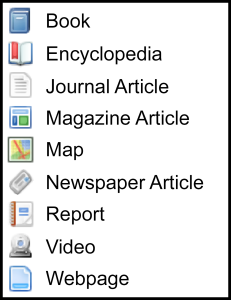
Developed by KU libraries. Licensed CC-BY-NC-SA
To save a citation, simply click on the Zotero connector icon in your browser. Zotero will automatically pull citation information from the page you are viewing and save it to your Zotero library. When accessing library databases, Zotero will often save a copy of the PDF to your library as well.
Zotero can capture citation information from a variety of web sources, including webpages, news articles, videos, and blog posts. After saving a citations, it's a good idea to double check that all relevant information has been saved accurately. Sometimes the Zotero connector may miss pieces of bibliographic information and you will have to manually fill in these gaps.
Saving Multiple Sources at Once
When there are multiple articles on a page, (such as conducting a database search, or searching on Google Scholar) Zotero can quickly save multiple sources at once. Simply click on the folder icon ( ) and a window will open and allow you select which articles from that page you would like to save.

Saving PDFs
Zotero can automatically save PDFs of articles when you're accessing content through library databases or other academic sources. If a PDF is available on the page you're viewing, Zotero will often download and attach it to the corresponding citation in your library.
However, not all sources provide direct access to PDFs, and Zotero may not always be able to retrieve them. In these cases, you can manually add a PDF to an existing citation:
- Download the PDF to your computer.
- Open Zotero and locate the citation you want to attach the PDF to.
- Drag and drop the PDF file onto the citation entry in your Zotero library.
This will link the PDF to the citation, allowing you to keep your research materials organized in one place.
If you already have PDFs saved from past research, you can easily add them to your Zotero library by dragging and dropping them from a desktop folder into the Zotero window. Zotero will then attempt to identify the document and automatically search online to match it with the correct citation information. If a match is found, Zotero will create a full citation entry and attach the PDF to it, helping you keep your research organized.
Note: If Zotero cannot find a match for the PDF, you can manually add citation details by right-clicking the item in your library and selecting “Create Parent Item.” This allows you to enter the bibliographic information yourself and link it to the PDF, ensuring your citation record is complete.
Adding items manually
There may be times when you need to add an item to your library by hand, such as when the source is not available online, or Zotero is unable to recognize it.
To add an item manually:
- Click the "New Item" icon (a green plus sign) at the top of your library.
- Select the item type from the drop-down list.
- Fill in the blank citation record with the relevant information.
After adding the citation information, you can upload a PDF, screenshot, or recording of your resource by dragging and dropping the file onto the citation entry.
Adding items by Identifier
You can also add items to your Zotero library using an item's unique identifier, such as a book's ISBN, article's DOI or PMID. This is helpful if you already have the source in front of you and want to quickly add it to your Zotero library without having to search for citation details.
To add an item by its identifier:
- Click the magic wand icon labeled “Add Item by Identifier” at the top of your library.
- Enter the ISBN, DOI, or PMID into the search box.
- Zotero will automatically retrieve the citation information and add the item to your library.
Collecting References: Other Web Sites
Other Web Sites
Zotero can't automatically capture citation info from some web pages, but you can still add them to your Zotero library.
Right-click in your browser and choose "Save to Zotero" from the menu. This will save a new "web page" item to your library. You can add information about the author, etc., if you wish.
This will also attach a snapshot of the page to the citation. Taking a snapshot saves a copy of the page to your computer. It includes the page's text and images, so if the page is removed later, or if you're offline, you'll still be able to view your copy.

Saving citations
Library Home | Library Admin | Alma | Worldshare Admin | Mobile Site